
If someone near you searches for what you sell, the first thing they often see is a map with three businesses under it. Those listings come from Google Business Profile, and it costs nothing to set one up. The process takes about 20 minutes, plus a verification step that can take a few days.
This guide walks through every step, from creating the profile to getting verified, and covers the mistakes that most often get new profiles suspended.
What You Need Before You Start
Gather these first so you can finish in one sitting:
- A Google account you control long term. Use a business Gmail or Google Workspace account rather than an employee’s personal one.
- Your exact business name as it appears on your signage, website, and paperwork.
- A business address or service area. Storefronts list an address. Businesses that travel to customers (plumbers, cleaners, mobile groomers) list the areas they serve.
- A phone number that customers can actually reach.
- Your website URL, if you have one.
- Hours of operation, including any days you close early.
- A few real photos: your storefront, your team, your work, and your logo.
Step-by-Step: How to Set Up a Google Business Profile
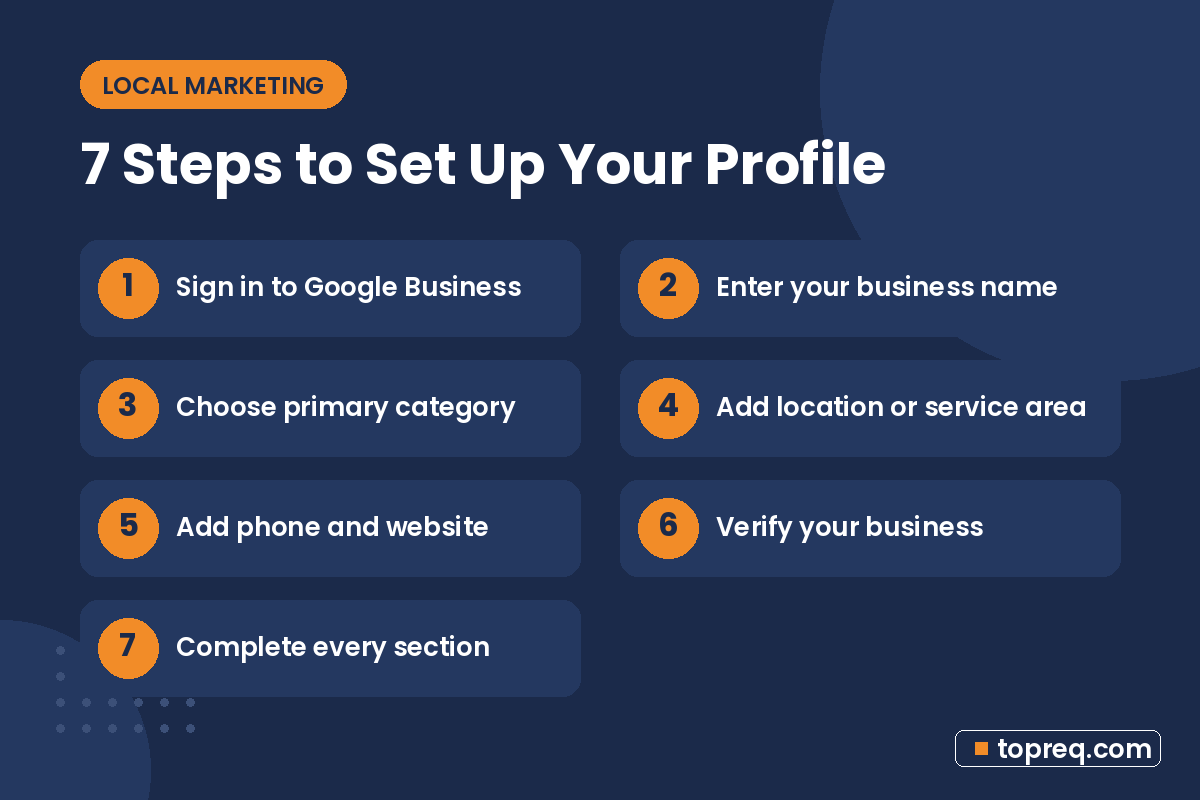
Step 1: Go to Google Business Profile and sign in
Visit business.google.com and sign in with the Google account you chose. Click Manage now or Add business. Google’s official walkthrough is on its Sign up for Business Profile help page if anything on screen looks different.
Step 2: Enter your business name
Type your business name. If Google suggests an existing listing with your name, check it carefully. A listing may already exist because a customer or Google created it. If it is yours, request access instead of making a duplicate.
Use your real-world name only. Do not add keywords or cities, such as “Smith Plumbing Best Plumber Dallas.” This is one of the most common reasons profiles get suspended.
Step 3: Choose your primary category
Your category tells Google what you are. Start typing and pick the most specific option that fits, such as “Bakery” instead of “Food,” or “Family law attorney” instead of “Lawyer.” You can add secondary categories later, but the primary category carries the most weight, so pick the one that describes your core business.
Step 4: Add a location or a service area
Google will ask whether you have a location customers can visit.
- Choose Yes if customers come to you during your posted hours, and enter your street address.
- Choose No if you go to customers or work from home. You will then add service areas, such as cities or ZIP codes. Your home address stays hidden.
Do not list a PO box, a virtual office, or a coworking desk you never use. Google’s guidelines for representing your business spell out which addresses are allowed.
Step 5: Add your phone number and website
Enter a local or toll-free number that reaches your business directly. Add your website, or link to your booking page if you do not have a full site yet. If you are still deciding what to spend, see our breakdown of how much a small business website costs. Make sure the number and address match what is on your website, so customers and Google see consistent information.
Step 6: Verify your business
Verification proves you own the business. Google decides which methods to offer based on your business type and location. Options may include:
- Video recording: a short, unedited video showing your location, signage or branded equipment, and proof you manage the business (for example, unlocking the door or showing your tools).
- Phone or text: a code sent to your business number.
- Email: a code sent to an address linked to your business.
- Postcard: a code mailed to your address.
- Live video call with a Google support agent.
Google’s Verify your business on Google page explains each method. For video verification, plan the shot list before you press record: start outside to show the street and your building, then show permanent signage or branded items, then something only the owner can access.
Step 7: Complete every section of your profile
Once you are verified, fill in everything:
- Business description: what you do, who you serve, and what makes you different. Write it for people, not for search engines.
- Hours: regular hours plus special hours for holidays.
- Services or products: list each one with a short description and a price if you can.
- Attributes: options like “wheelchair accessible” or “women-owned,” where they apply.
- Photos: a logo, a cover photo, exterior and interior shots, and photos of your work.
- Booking or quote links, if your category supports them.
Google says complete, accurate information helps you match relevant searches. Its tips to improve your local ranking page lists relevance, distance, and prominence as the main factors. Our local SEO checklist walks through how to improve the ones you can control.
Mistakes That Get Profiles Suspended
A suspended profile disappears from Maps, and reinstatement can take weeks. Avoid these problems:
Keyword stuffing the business name
Adding services or cities to your name breaks Google’s guidelines. If your legal or sign name really includes a word like “Plumbing,” that is fine. Adding extra words that are not part of your name is not.
Using an address you don’t operate from
Virtual offices, mailbox stores, and addresses you share with no staff present are common triggers. If you serve customers at their locations, set up a service-area profile instead.
Creating duplicate profiles
One business at one location gets one profile. If you find an old duplicate, claim it and ask Google to merge or remove it rather than starting fresh.
Editing too much right after verification
Changing your name, address, and category all at once can trigger a review. Get it right the first time and make changes one at a time.
Faking or buying reviews
Offering discounts for reviews, writing reviews for yourself, or asking only happy customers in a way that filters out others can lead to removed reviews or penalties. Google’s tips to get more reviews page shows the approved approach: ask customers and make it easy with a review link.
What to Do After Your Profile Is Live
Setup is the start. A profile that stays active tends to serve you better than one that is set up and forgotten.
- Ask every happy customer for a review. Copy your review link from the profile dashboard and send it by text or email after the job is done.
- Reply to every review, positive or negative. Keep replies short, polite, and specific.
- Post updates about offers, events, or recent projects. Posts show on your profile and give people a reason to call.
- Add new photos regularly, especially of finished work.
- Answer questions in the Q&A section if your profile shows it, and check messages if you turn chat on.
- Review performance in the dashboard to see how many calls, direction requests, and website clicks you get.
A Quick Setup Checklist
- Sign in with a long-term business Google account.
- Search for an existing listing before creating a new one.
- Use your real business name with no extra keywords.
- Pick the most specific primary category.
- Choose a storefront address or service areas, not both by mistake.
- Add a working phone number and website.
- Complete verification using the method Google offers.
- Fill in the description, hours, services, attributes, and photos.
- Set up a routine for reviews, replies, and posts.
Frequently Asked Questions
Is a Google Business Profile free?
Yes. Creating and managing a profile is free. Google sells ads that can appear near listings, but you do not need to buy them to have a profile.
Can I set up a profile if I work from home?
Yes. Choose that you do not have a location customers visit, then add your service areas. Your home address will not show publicly, but Google may still need it for verification.
How long does verification take?
It depends on the method. Phone, email, and some video reviews can finish within days, while postcards take longer to arrive. Google may also ask for more information if something looks unclear.
What if my profile gets suspended?
Check your profile against Google’s guidelines, fix anything that breaks them, and submit a reinstatement request from your dashboard with proof of your business, such as a utility bill, business license, or photos of your signage.
Need help growing your business online? TopReq is run by the team at Boostology, a web design and digital marketing agency.
Services: Website Design, SEO, Social Media Management, Meta Ads.