
Short answer: Most video verifications get rejected because the reviewer can’t connect three things in one clip: where the business is, proof that the business exists, and proof that you manage it. Record one continuous video, with no cuts. Start outside so the street sign or address is visible, walk to your signage, vehicle or workspace, show your tools or stock, then show a business document and your Business Profile dashboard on your phone. If two careful attempts still fail, stop resubmitting and contact Google Business Profile support with your Profile ID.
You followed the instructions, filmed the video, and a few days later Google sent the same short email: your verification couldn’t be completed. Then it happened again. For a small business that depends on showing up in Maps, this is one of the most frustrating parts of running a Google Business Profile, and the rejection email rarely tells you what was missing.
The good news is that rejected video verifications usually come down to a handful of fixable problems. This guide covers what Google is looking for, the nine fixes that solve most rejections, and what to do when you’re stuck in a loop.
Why Google Asks for Video Verification
Verification is how Google confirms that a real business operates at the location or in the service area on your profile. Google explains the available options on its verify your business on Google help page. Depending on your business type, category, and history, you may be offered a phone call, text, email, video recording, or a live video call. In recent years video has become the most common method for new profiles and for profiles that Google wants to re-check.
Video is not a punishment. It often appears when Google sees signals that need confirming: a brand-new profile, a service-area business with no storefront, a recent change to your name or address, or a category that attracts spam. If you’re still setting up your listing, start with our guide on how to set up a Google Business Profile, which explains the steps before verification.
What Google Needs to See in the Video
Google’s instructions ask for three kinds of proof. Think of them as three questions the reviewer has to answer “yes” to:
- Location: Is this business really in the place on the profile? Street signs, the building number, nearby landmarks, or the storefront itself answer this.
- Existence: Is this a real, operating business? Permanent signage, branded vehicles or uniforms, equipment, inventory, or a work area answer this.
- Management: Are you authorized to manage it? Keys that open the business, access to a staff-only area, business documents such as a license, utility bill or invoice, or your logged-in Business Profile dashboard answer this.
A rejection usually means at least one of these three wasn’t clear. A lot of reviewing is automated, so “clear” has to mean clear to a camera and a fast reviewer, not just to you.
9 Fixes for a Rejected Video Verification
1. Record one continuous clip with no cuts
The video has to show that every piece of proof belongs to the same place at the same time. If you stop recording, edit clips together, or film the documents in a different room on a different day, the link between location and business is broken. Plan the route first, then press record once and walk through it from start to finish. Two or three minutes is usually plenty.
2. Start outside and show the address
Begin on the street. Pan slowly across a street sign, the building number, or a recognizable landmark, then walk to your entrance without stopping. This is the step most people skip, and it’s the one that ties everything else to the address on your profile. If you’re in a shared building, film the building directory or your suite number on the way in.
3. Make sure the details match your profile exactly
The business name on your signage, documents, and vehicle should match the name on your Business Profile. If your profile says “Smith Family Plumbing & Drain” but your van says “Smith Plumbing,” or you added a city or keyword to your profile name, the reviewer sees a mismatch. Google’s guidelines ask you to use your real-world business name, so fix the profile before you record again rather than trying to explain the difference on camera. The same goes for the address and phone number.
4. Show permanent signage or branding, not printouts
A sheet of paper taped to the door doesn’t prove much, because anyone can print one. Show something that takes effort to fake: a fixed sign, lettering on the window, a wrapped or decaled vehicle, branded uniforms, or printed packaging. If you’re a newer business without a permanent sign, show several smaller pieces of branding together, such as business cards, invoices with your logo, branded equipment, and your work area.
5. For service-area businesses, film the vehicle and the tools
Service-area businesses (plumbers, cleaners, contractors, mobile groomers) have the hardest time because there is often no storefront. Work around that by showing your equipment as your “location”:
- Start at the street sign near where you’re based, then walk to your vehicle.
- Keep the logo or business name on the vehicle in frame for a few seconds.
- Open it and show the tools, materials, or equipment you use for the job.
- If you can, show yourself working, or a job site where you’re doing the work.
Make sure your profile is set up correctly as a service-area business too. If you serve customers at their location and don’t welcome them at your address, Google expects the address to be hidden and service areas listed instead.
6. Prove you manage it: keys, documents, and your dashboard
This is the “management” proof, and it’s often what’s missing. Pick two or three of these:
- Use your key to unlock the front door or a staff-only room on camera.
- Open the cash register, point-of-sale screen, or a locked supply cabinet.
- Hold up a business license, registration, utility bill, or recent invoice that shows the business name and address. Hold it still and close for a few seconds.
- Open the Google Business Profile app or dashboard on your phone and show that you’re signed in as the manager of this profile.
Blur nothing during recording. If a document contains sensitive information, choose a different one that doesn’t, rather than covering details.
7. Fix the lighting, pace, and focus
Many rejections are simply “couldn’t see it.” Record in daylight or a well-lit room. Move slowly, especially when panning across signs and documents. Pause for three to five seconds on each key item and let the camera focus. Hold the phone steady and horizontal, wipe the lens, and avoid filming directly into a bright window. Watch your recording back before you upload it. If you can’t read the sign on your own phone, the reviewer can’t either.
8. Use the right account and record inside the app flow
Record the video through the verification flow Google gives you, signed in to the Google account that owns or manages the profile. Uploading an old clip or a video recorded with a different app can fail. If several people manage your profile, the person who records should be an owner or manager on it. Also check that no one else is trying to verify the same business at the same time, because duplicate profiles and competing claims cause rejections that look random.
9. Fix the profile before re-recording
Sometimes the video is fine and the profile is the problem. Before you try again, review it against Google’s guidelines:
- Is the business name exactly your real-world name, with no added keywords?
- Is the primary category the one that best describes your business?
- Is a service-area business showing a home address publicly? Hide it.
- Does the website link work, and does the site show the same name, address, and phone number?
- Are there duplicate profiles for the same business? Remove or merge them.
Our local SEO checklist includes a section on name, address, and phone consistency that’s worth running through at this stage. If your website doesn’t show your business details clearly, our guide to what pages a small business website should have explains what a basic contact page needs.
A Simple Shot List You Can Follow
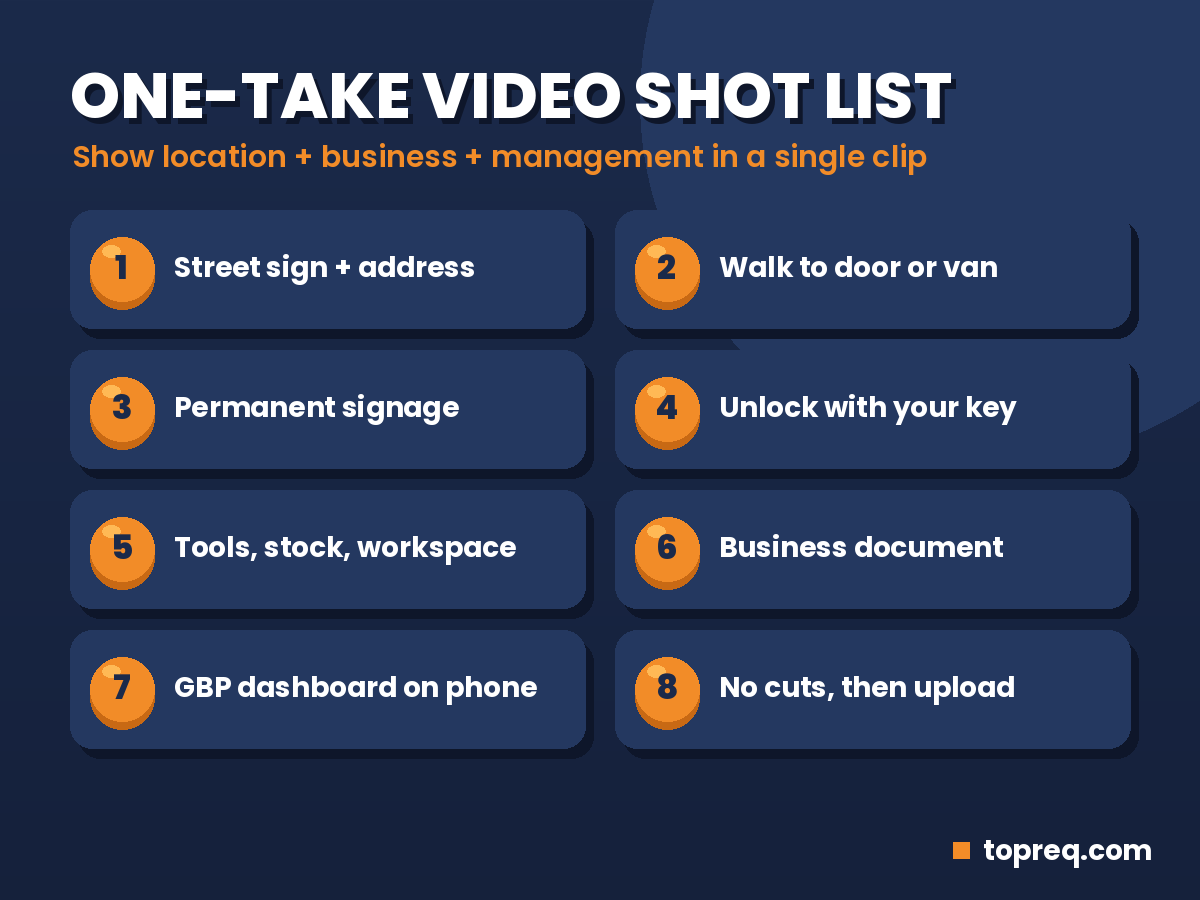
Here’s one order that covers all three kinds of proof in a single take:
- Street sign or landmark, then building number (10–15 seconds).
- Walk to the storefront, office door, or branded vehicle without stopping.
- Permanent signage or vehicle branding, held in frame for a few seconds.
- Unlock the door or vehicle with your key.
- Inside: equipment, inventory, workstations, or your tools (20–40 seconds).
- A business document with the name and address, held close and steady.
- Your Google Business Profile dashboard open on your phone.
Practice the route once without recording. Most people find their first take is rushed.
What to Do If You’re Stuck in a Verification Loop
If you’ve submitted two careful videos and both were rejected with the same generic message, stop. Re-recording the same video a fourth or fifth time rarely changes the result, and owners in forums often describe weeks lost this way.
Instead:
- Check your verification status in your Business Profile. Sometimes a different method, such as a live video call, becomes available after a failed attempt.
- Contact Google Business Profile support from the Help Center’s contact options and choose verification as the issue. Include your Profile ID (found in your profile settings), the dates of your attempts, and a short list of what each video showed.
- Ask for a live video call if it’s offered. With a person on the call, you can show the same proof and answer questions in real time.
- Post in the Google Business Profile Community if support doesn’t respond. Include your Profile ID and screenshots of the rejection emails. Volunteer Product Experts can sometimes escalate cases.
If your profile has been suspended rather than just left unverified, the process is different. Our guide on how to appeal a suspended Google Business Profile walks through it.
Mistakes That Make Rejections More Likely
- Creating a new profile to “start fresh.” This creates a duplicate and can make things worse.
- Adding keywords to your business name to rank higher, such as “Best Dentist Austin.”
- Using a virtual office or mailbox as your address. These generally aren’t eligible.
- Filming only the inside of a room that could be anywhere.
- Using stock or old footage instead of recording through the verification flow.
- Paying a “verification service” that asks for your login. You stay responsible for anything they do on your account.
After You’re Verified
Once verification goes through, your profile can start appearing in Maps and local results, and you can edit it fully. Make the most of it: add photos, services, and hours, and start building reviews. Our guide on how to get more Google reviews has scripts and QR code tips. Avoid big changes to your name, address, or category right after verifying, since major edits can trigger another review.
Frequently Asked Questions
How long does Google take to review a verification video?
It varies. Many owners hear back within a few business days, but it can take longer during busy periods. Don’t submit a new video while one is still under review.
How many times can I resubmit a verification video?
Google doesn’t publish a firm limit, but repeated identical submissions rarely help. After two careful attempts, contact support or ask for another verification method.
Can I verify a home-based business with video?
Yes. If customers don’t visit your home, set it up as a service-area business with the address hidden, then show your street, your vehicle or equipment, and your business documents in the video.
Does the video need to show my face?
Not necessarily. What matters is showing the location, the business, and proof you manage it. Showing yourself working or unlocking the business can help with the management part.
Why was my video rejected when it showed everything?
The most common hidden causes are a business name that doesn’t match your signage, a cut in the video, unclear or fast footage, or a problem with the profile itself, such as a duplicate or an ineligible address.
Is a verified profile guaranteed to rank?
No. Verification makes your profile eligible to appear. Ranking still depends on relevance, distance, and prominence, which you can improve with a complete profile, reviews, and a good website.
Need a hand with your local presence? Boostology is a small web and digital marketing team that sets up and optimizes Google Business Profiles and builds fast, mobile-friendly websites for local businesses. Contact us or book a free 30-minute call.
Need help growing your business online? TopReq is run by the team at Boostology, a web design and digital marketing agency.
Services: Website Design, SEO, Social Media Management, Meta Ads.